This is an interactive notebook. You can run it locally or use the following links:
Import traces from third-party systems
This notebook shows you how to import historical conversation traces from a CSV file into W&B Weave so you can analyze them, compare model behavior, and run evaluations on data that was generated outside of a Weave-instrumented application. Sometimes you can’t instrument your Python or JavaScript code with the Weave integration to obtain real-time traces of your GenAI application. Often, these traces are available to you later in CSV or JSON format. This notebook uses the lower-level Weave Python API to extract data from a CSV file and import it into Weave so you can analyze and evaluate it. The sample dataset assumed in this cookbook has the following structure:conversation_id as the parent identifier and turn_index as the child identifier to provide complete conversation logging.
You must modify the variables in the following sections to match your own dataset, file paths, and W&B project.
Set up the environment
Install and import all needed packages. SetWANDB_API_KEY in your environment so that you can log in with wandb.login() (provide this to Colab as a secret).
Set the name of the file you upload to Colab in name_of_file, and set the W&B project you want to log into in name_of_wandb_project.
name_of_wandb_project can also be in the format [TEAM_NAME]/[PROJECT_NAME] to specify a team to log the traces into.weave.init().
Load the data
With the environment ready, you can load and shape the CSV data so that it matches the parent-child structure that Weave expects. Load the data into a pandas DataFrame, and sort it byconversation_id and turn_index to ensure the parents and children are correctly ordered.
This results in a two-column pandas DataFrame with the conversation turns as an array under conversation_data.
Log the traces to Weave
With the data shaped into conversations and turns, the next step is to write those records into Weave as parent and child calls. Iterate through the pandas DataFrame:- Create a parent call for every
conversation_id. - Iterate through the turn array to create child calls sorted by their
turn_index.
- A Weave call is equivalent to a Weave trace. This call can have a parent or children associated with it.
- A Weave call can have other things associated with it, such as feedback and metadata. This example only associates inputs and outputs, but you can add these other items in your import if the data provides them.
- A Weave call is
createdandfinishedbecause these are meant to be tracked in real time. Because this is an after-the-fact import, you create and finish once the objects are defined and tied to one another. - The
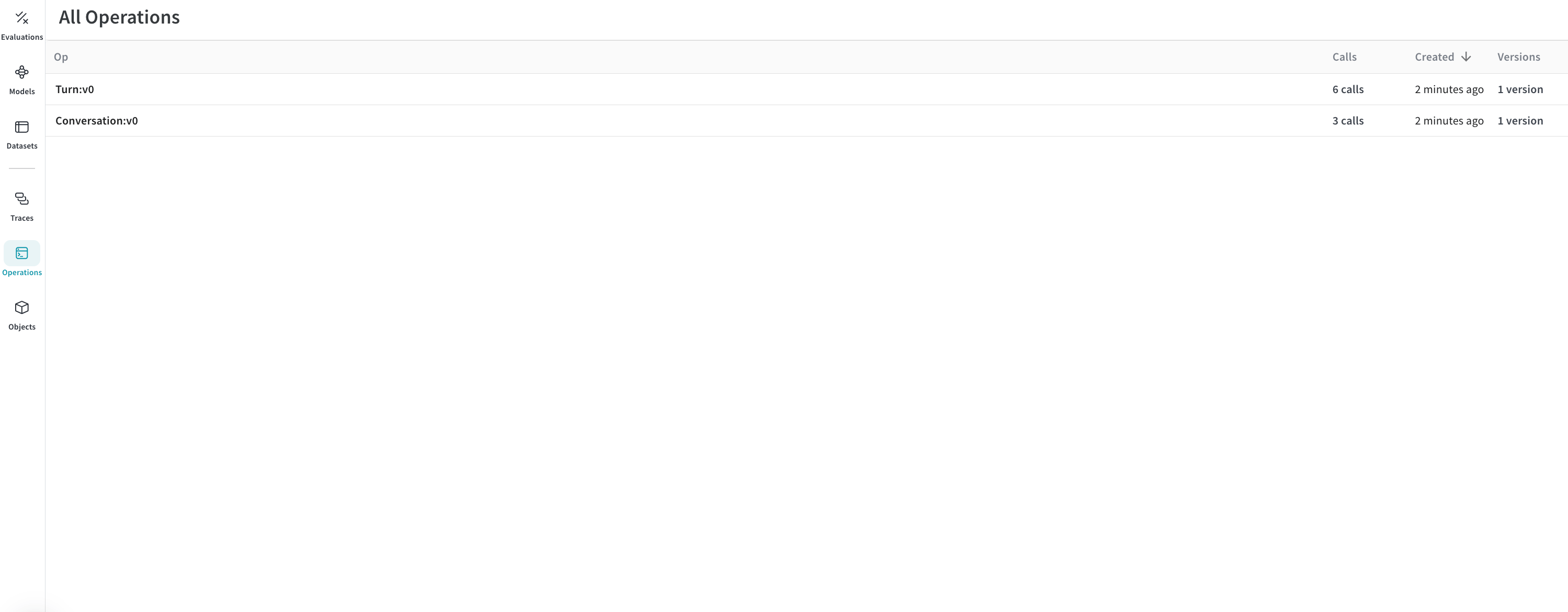
opvalue of a call is how Weave categorizes calls of the same makeup. In this example, all parent calls are ofConversationtype, and all child calls are ofTurntype. You can modify this as you see fit. - A call can have
inputsandoutput.inputsare defined at creation, andoutputis defined when the call is finished.
Result: traces logged to Weave
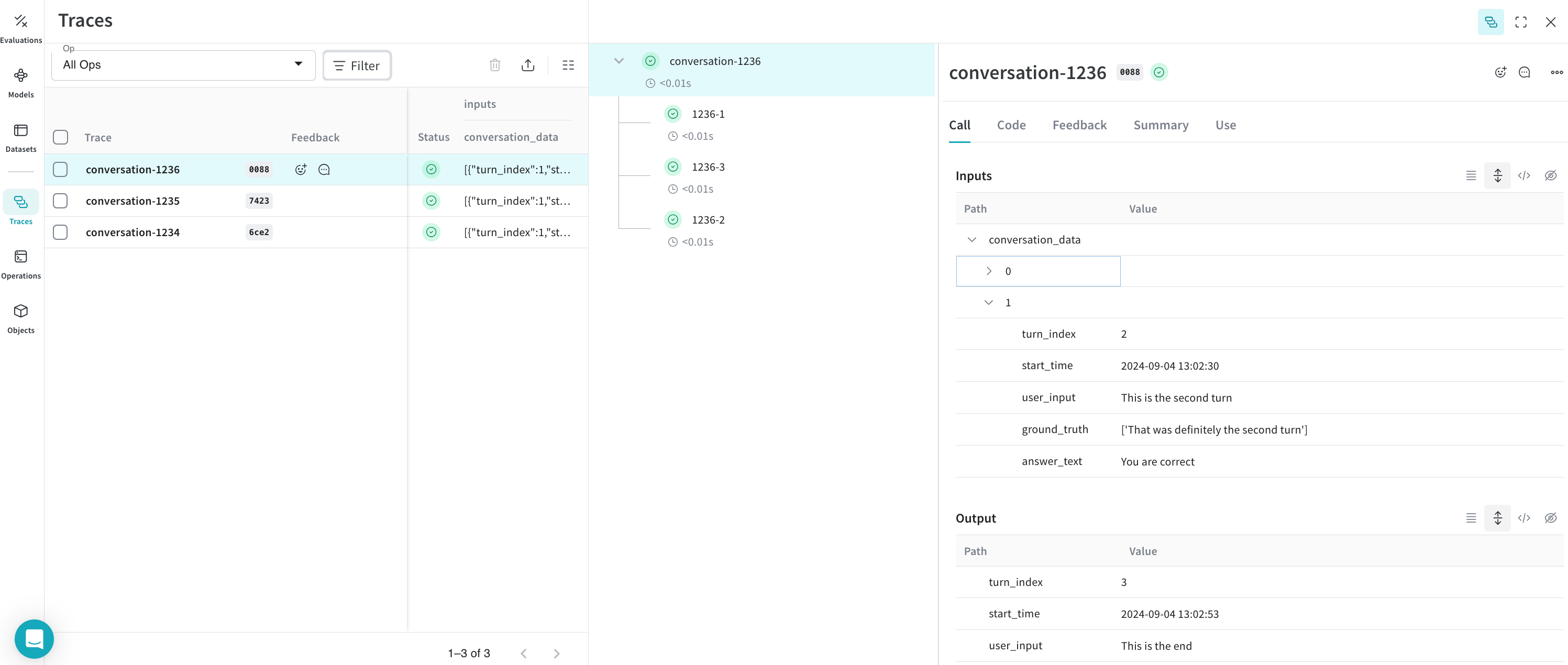
At this point, your CSV data has been imported into Weave. You can now browse the conversations and their turns in the Weave UI, grouped under theConversation and Turn operations you defined.
Traces:
Optional: export your traces to run evaluations
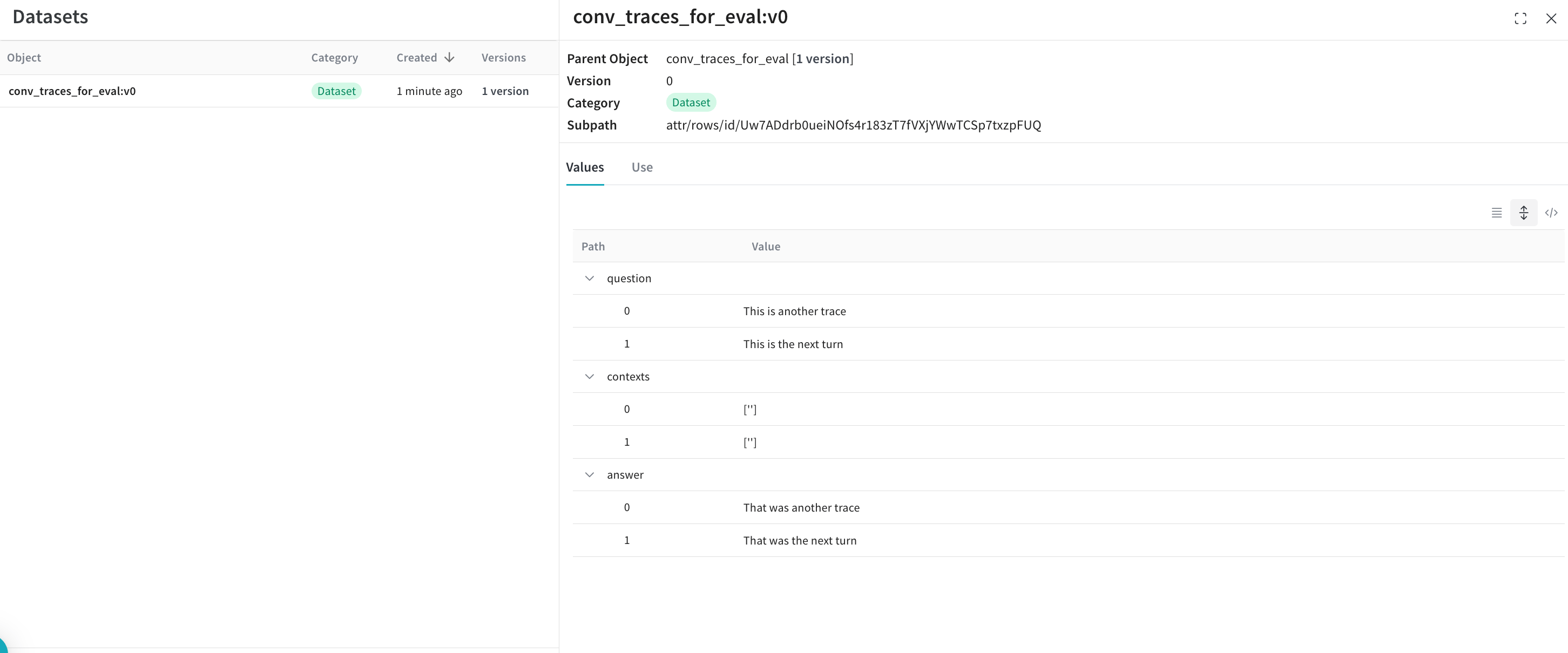
Once the traces are in Weave and you understand how the conversations look, you can export them to another process to run Weave Evaluations.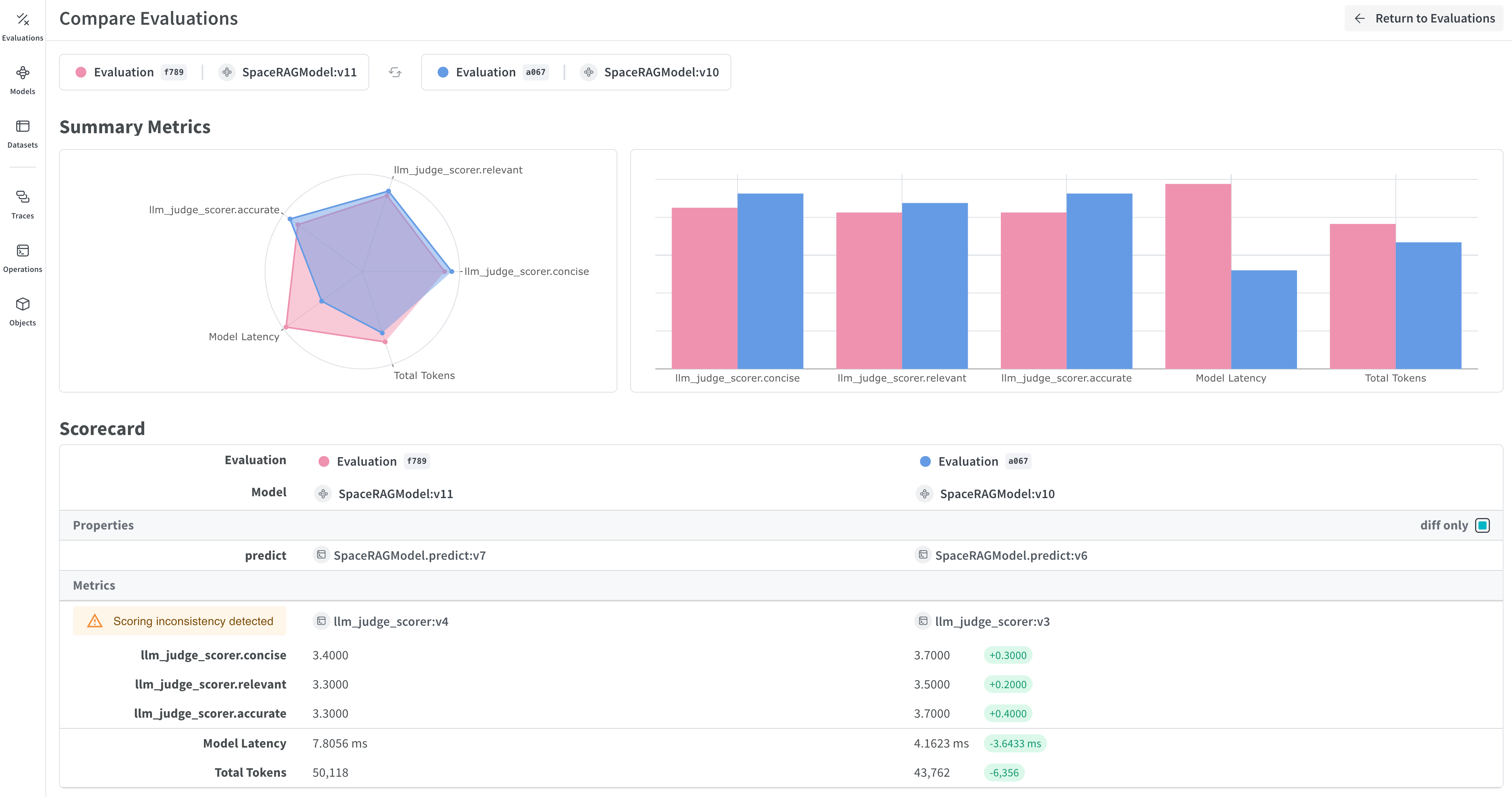
Result
The exported dataset is now published back to Weave and is ready to use as input for an evaluation.